

Bottom line up front
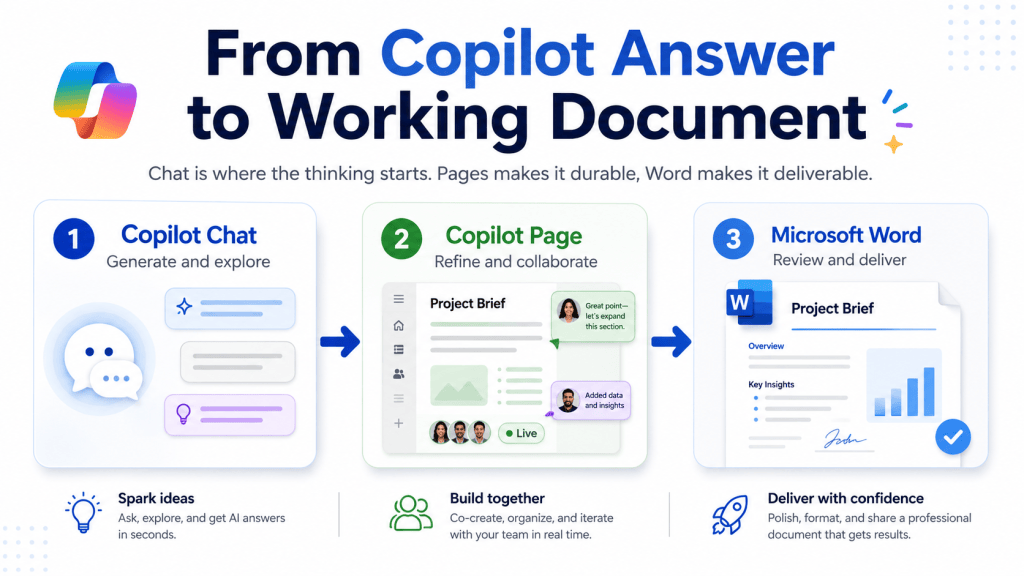
A good Copilot Chat answer disappears the moment you close the window. Send it to a Copilot Page to make it durable and collaborative, then convert that Page straight into a real Word document — Create, then Document, then Open Word — once it’s ready to be a formal deliverable.
This post is part of an ongoing series on working with documents in Microsoft 365 Copilot — how a good answer in chat becomes something your team can actually use, review, and share. Earlier entries in the series have covered summarizing long documents, letting the Word Agent build a first draft from a prompt, and refining agent-built content directly in Word. This one picks up a problem almost everyone runs into: the moment you close a Copilot Chat window, the answer inside it is gone. Not deleted, exactly — just stuck. This post covers the two-step bridge that gets it out: Copilot Pages, and from there, Word.
Why It Matters
Copilot Chat is very good at producing a useful answer in the moment. It is not built to hold that answer over time. A chat thread scrolls, gets buried under newer conversations, and isn’t something you can hand to a colleague to edit alongside you. If the answer was worth getting, that’s a problem — teams end up re-asking the same question, or copying chat text into a blank document and manually rebuilding the formatting from scratch.
Copilot Pages solves the where does this live problem. Word solves the who else needs to work on this problem. Understanding both, and the one-click handoff between them, means a good Copilot answer stops being a one-time convenience and starts being a repeatable way to produce real work product.
What You’ll Learn
- What a Copilot Page actually is, and how it differs from a chat response
- How to move a Copilot Chat answer into a Page
- How to convert a Page into a Word document
- Who can use this workflow, based on current licensing requirements
- A practical scenario for communications and knowledge work teams
- Common mistakes to avoid when using this handoff
What a Copilot Page Actually Is
A Copilot Page is a persistent, editable canvas that Copilot creates from chat content. Instead of leaving an answer sitting in a scrolling conversation, a Page pulls it out into its own space where you and others can edit it in real time, add to it, and restructure it — much closer to a live document than a chat log.
The important shift is durability. A chat response is a snapshot. A Page is a working file. It stays where you left it, and it’s built for collaboration rather than for reading once and moving on.
Getting Content Into a Page
When Copilot gives you a chat response worth keeping, the Pages feature menu on that response lets you send it to a new page or add it to a page you’re already working in. From there, the content behaves like any editable document: you can rewrite sections, add headings, bring in additional Copilot-generated content, or invite colleagues to edit alongside you.
This is the step most people skip. It’s common to see someone copy a Copilot answer into an email or a blank Word document by hand, reformatting as they go. Sending it to a Page instead preserves structure and keeps the content editable and shareable from the start, with no manual rebuild required.
From Page to Word
A Page is a good home for a working draft, but there are moments when content needs to graduate into a formal document — something you can route for review, attach to an email, or hand to a stakeholder who expects a Word file. In the upper right corner of the page, select Create, then select Document. Copilot prepares the draft, and once it’s ready, selecting Open Word opens the page as a real Word document in Word for the web.
That one conversion step is the entire bridge. Nothing about the content needs to be rebuilt or reformatted by hand — the Page hands off directly into a real, editable Word file.
⚠️ Watch out
The option to convert a Copilot Page directly into a PowerPoint presentation — which used to sit alongside the Word conversion — is currently unavailable. If you need slides built from Page content, plan on doing that separately for now.
Licensing and Availability
If you’re on a work or school account, Copilot Pages is available to anyone with SharePoint or OneDrive storage — including people who don’t have a Microsoft 365 Copilot license. If you’re on a personal Microsoft account, Pages is available if you’re a Microsoft 365 Personal, Family, or Premium subscriber. The practical takeaway: don’t assume a colleague is locked out of this workflow just because they lack a Copilot license. If they have Copilot Chat access and standard Microsoft 365 storage, Pages is very likely available to them too.
A Practical Scenario
Picture a communications team lead who asks Copilot Chat to draft a summary of a product launch, pulling in key messaging points and a rough timeline. The answer in chat is solid, but it needs input from two other people before it becomes anything usable. Instead of copying the text into an email thread, the lead sends the response to a Page. Both colleagues open the Page, add their own edits, and the three of them shape the draft together in real time.
Once the content is in good enough shape to route to a manager for sign-off, the lead converts the Page to Word. The resulting document opens with real formatting already in place — headings, structure, and a state ready to be shared as an attachment or routed through a review workflow. What started as a single chat prompt is now a document that can move through a normal business review process.
Best Practices and Common Pitfalls
Send content to a Page as soon as you know you’ll want to keep or share it — waiting until after the chat window is closed means starting over. Use the Page stage for collaboration and iteration, since that’s what it’s built for, rather than converting to Word too early and losing the ability to co-edit easily inside Copilot. Convert to Word only when the content is ready to be treated as a formal deliverable; converting too early just means doing the same editing work in a different tool. And don’t skip Pages altogether by copying chat text directly into Word — you’ll lose the collaborative editing step and end up reformatting content that Pages would have preserved automatically. And don’t go looking for a PowerPoint export option on a Page — that path is currently unavailable, so plan on building slides separately if you need them.
Key Takeaways
Chat is where the thinking happens. A Page is where that thinking becomes durable and collaborative. Word is where it becomes a shareable, formal deliverable. Converting a Page to Word is Create, then Document, then Open Word — Pages access depends on your account type and storage, not a Copilot license — and the bridge between chat, Page, and Word is a single click in each direction, no manual reformatting required.
What’s Next
The next piece in this series looks at Researcher, the Copilot agent that produces a fully sourced report you can also take straight to Word — a different path to the same destination, built for research-heavy work rather than quick chat answers.


Leave a Reply